
PANDASHOKAI
Home / fukuroo
fukuroo

Find the traces
left on your server.

Connects to your server over SSH and looks for traces of unauthorized access in three places: logs, the current state, and what attackers leave behind. There is no need to install anything on the server; just add the server and click Analyze.

Windows / Free to view analysis results
FUKUROO
Probe.
Survey.
Expose.
BY PANDASHOKAI EST. 2026
INVESTIGATE / FUKUROO

Detects planted back doors.
Identifies suspicious logins.

Among your website files, fukuroo finds files placed to control the server from outside and programs hidden in image upload folders. From the authentication logs, it picks out logins from sources with repeated failed attempts and logins as root.

WHAT YOU CAN DO

A closer look at what you can do.

01

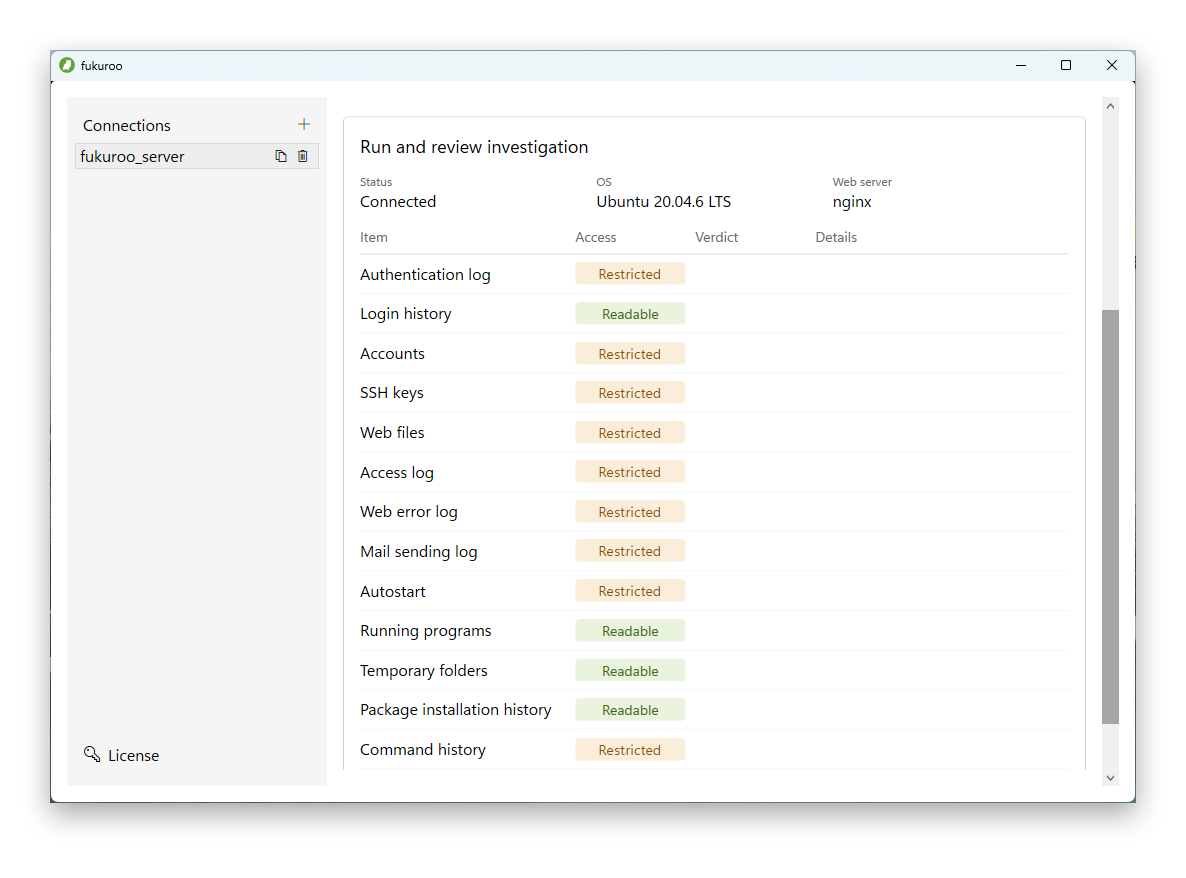
Check 13 items at once

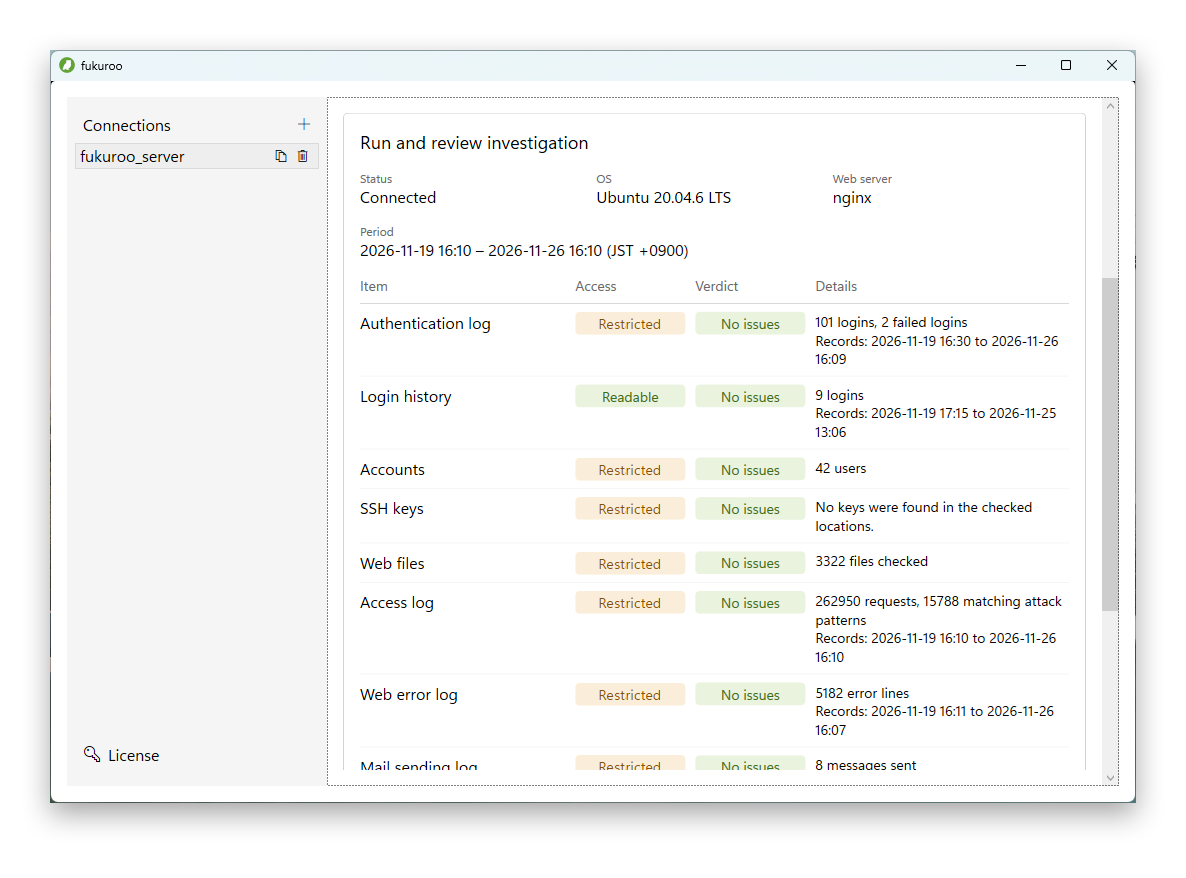
When you start to wonder whether your server has been taken over, fukuroo checks 13 items where traces of intrusion tend to remain, such as authentication logs, web files, autostart entries, and temporary folders.

What we check +
02

See a verdict for each item

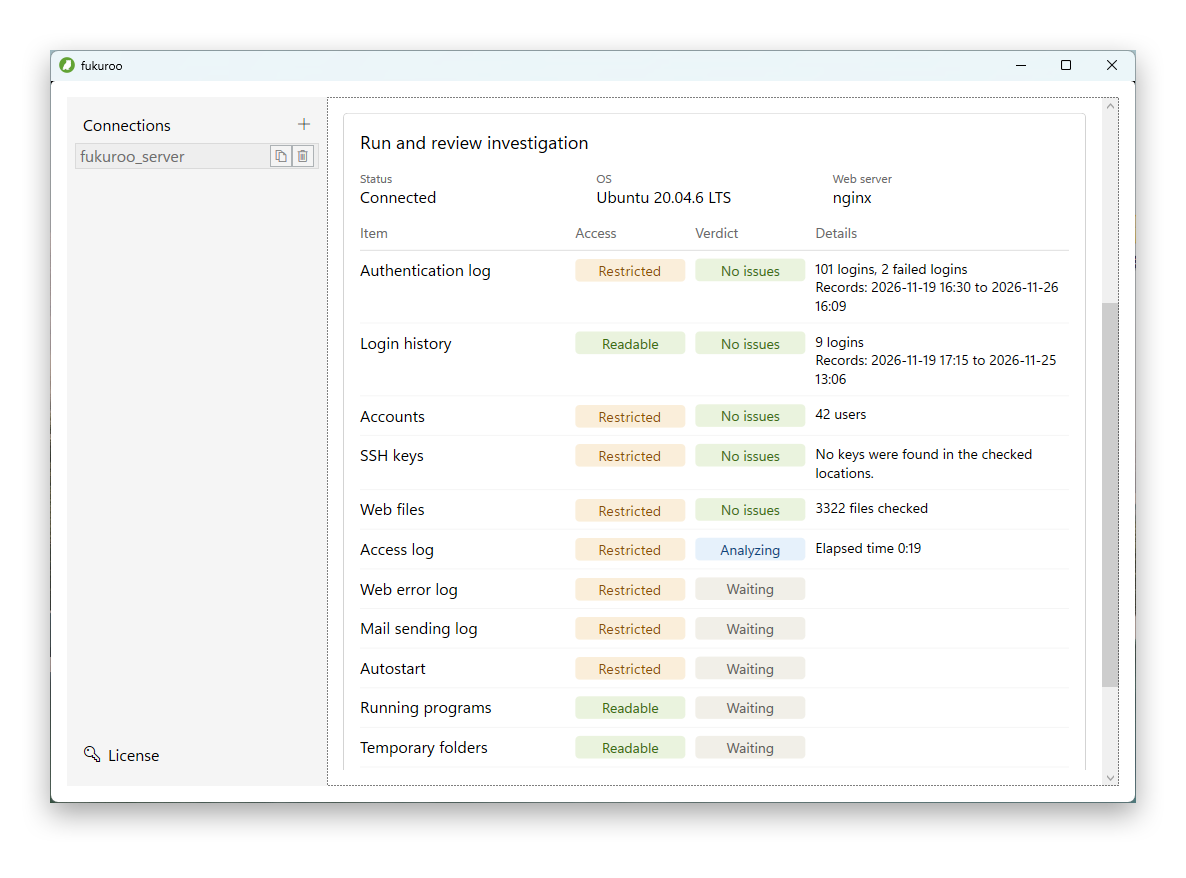
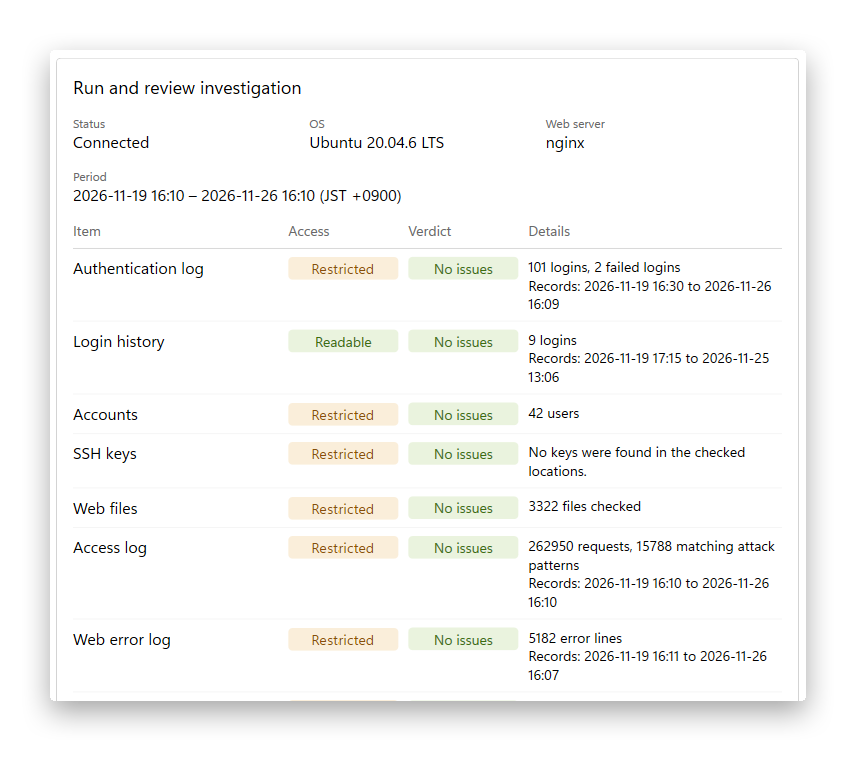
Results are shown as a verdict for each item, such as No issues or Review. Items that need attention come with evidence, so you know where to start looking.

Reading the verdicts +
03

Keep the results as a report

Along with a PDF summary, you can save a detailed text file with all the evidence and detailed data that do not fit on the screen. Use it to look into items marked Review, or for reporting and records. A license must be purchased to save reports.

License +
WHAT WE CHECK

13 items from three angles.

Intruders try to cover their tracks by deleting logs. fukuroo looks beyond the logs, checking the current state of the server and what attackers tend to leave behind.

01

Logs

Authentication logs, login history, access logs, web error logs, outgoing mail logs, package installation history

02

Current state

Accounts, running processes, temporary folders

03

What attackers leave behind

SSH keys, web files, autostart entries, command history

The checks focus on traces of incidents that actually happen often, such as website tampering, spam sending, and attackers staying on after cracking an SSH password.

VERDICTS

Reading the verdicts.

Each item in the results is shown with one of the following five verdicts.

No issues Shown when no traces of intrusion were found in what was checked.
Review Shown when the investigation found something that suggests an intrusion.
Unknown Shown when no judgment could be made, for example because some files could not be read or the check did not finish in time.
Not applicable Shown when the server has nothing for this item to check, for example when there is no mail server.
No access Shown for items that cannot be checked with the permissions of the connected user, for example on shared hosting.
SAFE TO RUN

Safe to run on live servers.

01

Nothing to install

Nothing is installed on the server, and no settings are changed and no files are created. Only read-only commands are used.

02

Light on the server

Commands on the server run at low priority. Large logs are summarized on the server, and only the results are sent back.

03

No passwords stored

Passwords, passphrases, and sudo passwords are never stored. Connection settings are encrypted for each Windows user. Information about the servers you investigate is never sent to us.

SUPPORTED SERVERS

For VPSs and shared hosting alike.

fukuroo supports Unix-like servers that you can reach over SSH, such as Ubuntu, Debian, Red Hat-based systems, and FreeBSD. Windows servers are not supported.

When you connect as root or analyze with sudo, fukuroo checks the whole server and the home directories of all users.

Otherwise, as on shared hosting, it checks inside the home directory of the connected user, along with that user's processes and files in temporary folders. Items that look at the whole server are shown as No access.

LICENSE

Saving reports takes a license.

You can analyze servers for free without a license. A license is required to save the results as a report.

Analysis

Free

Analysis of 13 items
Verdicts and evidence

License

JPY 10,000 (tax included)

Saving reports (PDF and text)
All evidence and detailed data
One computer
Perpetual license

Changing computers

Free

Reset the registered device
on the license management page

GET STARTED

Download it
and start analyzing.

Start by analyzing a server you are concerned about. The installer comes in a separate version for each language shown during installation. After installation, fukuroo follows the display language of Windows.

Windows 10 (version 1809) or later / 64-bit (x64)

01

Add a server

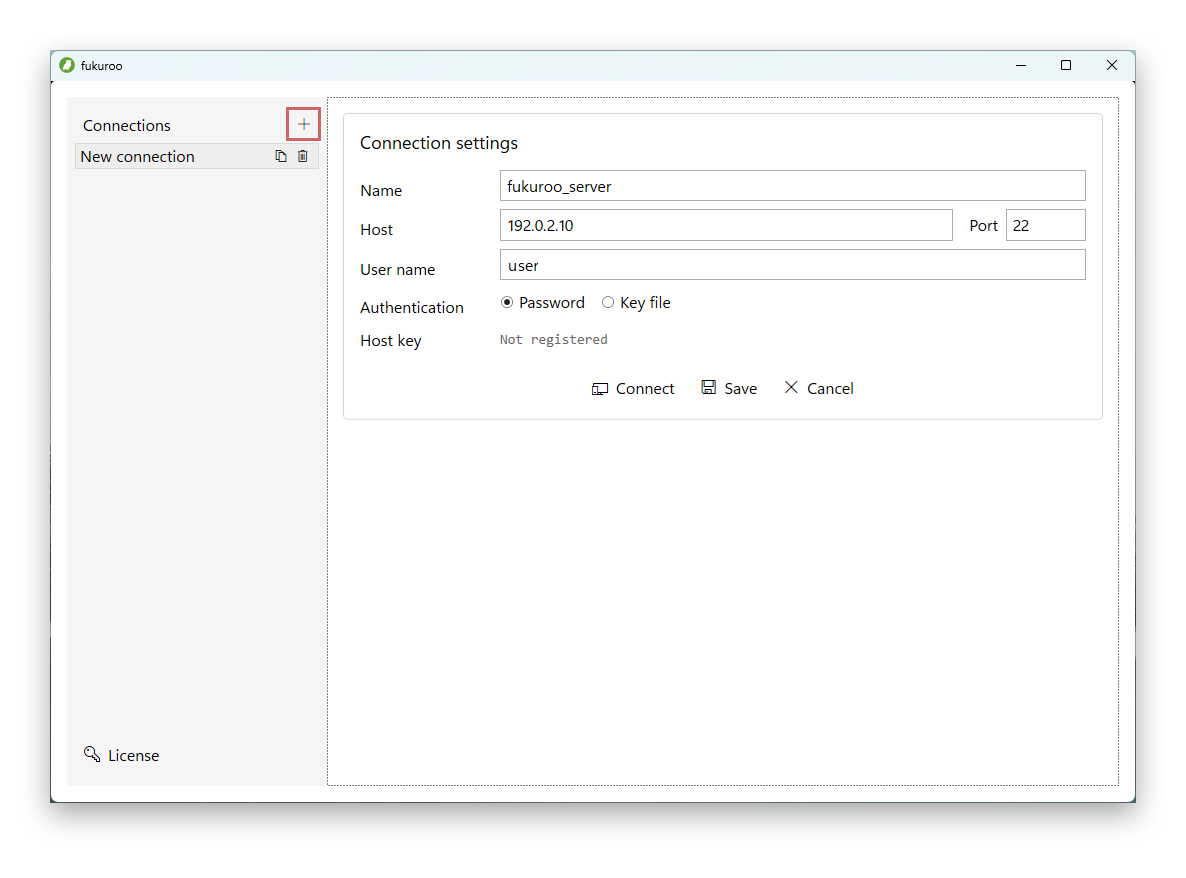
Click "+" in the list on the left, enter the name, host, port (22 by default), user name, and authentication method, then click Save. Choose Password or Key file as the authentication method; for a key file, specify where the file is. Passwords are not saved and are entered each time you connect.

02

Connect

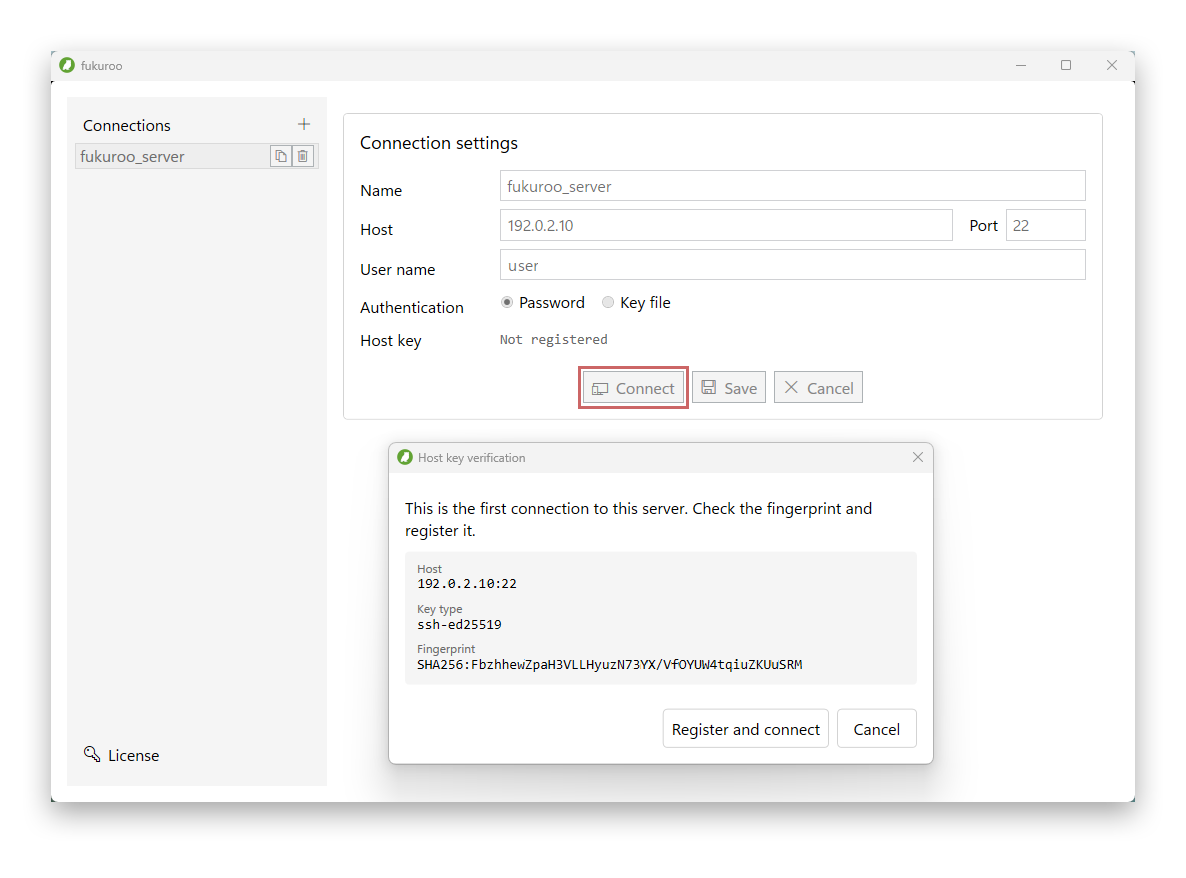
Click Connect. The first time you connect to a server, a host key confirmation screen appears. Check that the fingerprint matches the server, then click Register and connect. From then on, the key is compared with the registered one, and fukuroo does not connect if they differ.

03

Check the server information

Once connected, the server's OS, web server, and the access status of each item are shown. Items that cannot be checked with the permissions of the connected user are shown as No access as soon as you connect.

04

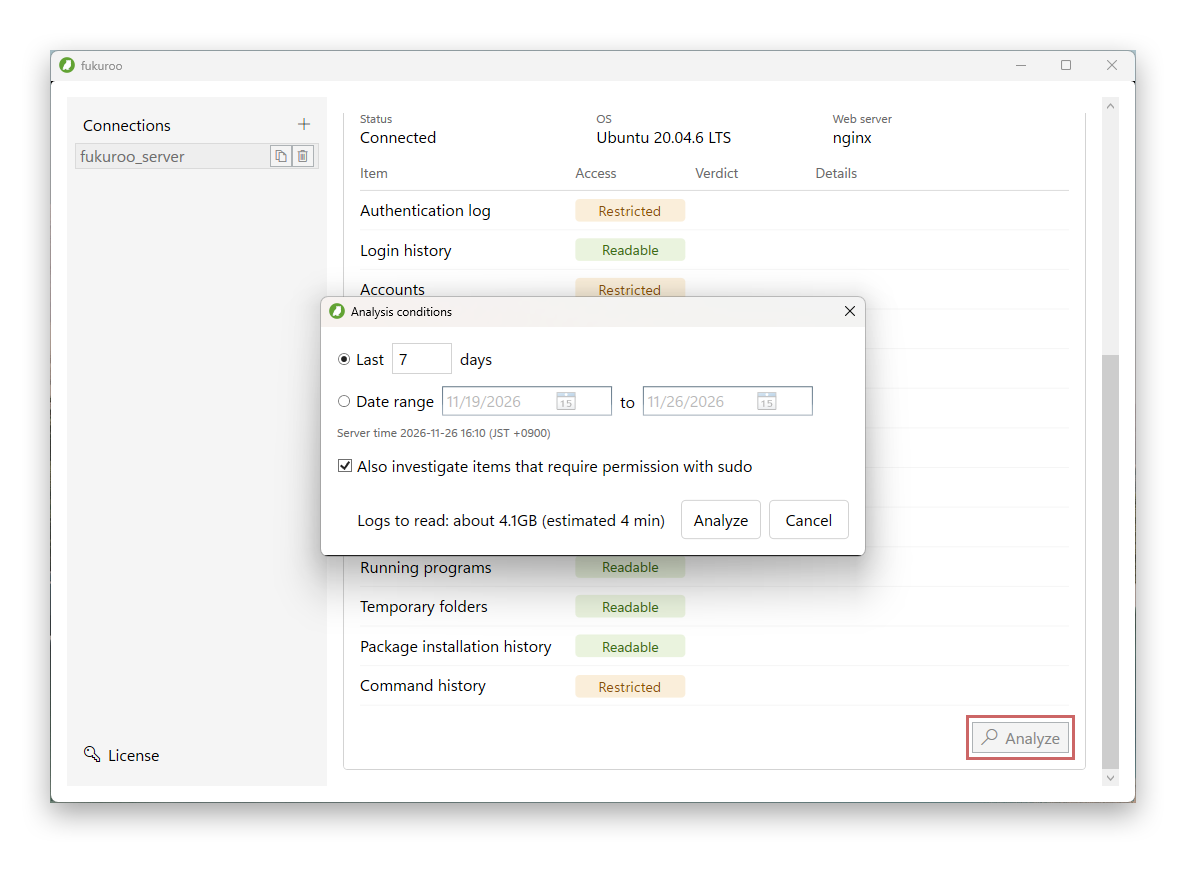
Choose the period

Click Analyze to open the analysis settings. Choose "Last N days" (1 to 60 days, 7 by default) or "Date range" to set start and end dates. The period is based on the server's clock. On servers where sudo is available, check "Also investigate items that require permission with sudo" to examine the whole server. Check the estimated time and click Analyze.

05

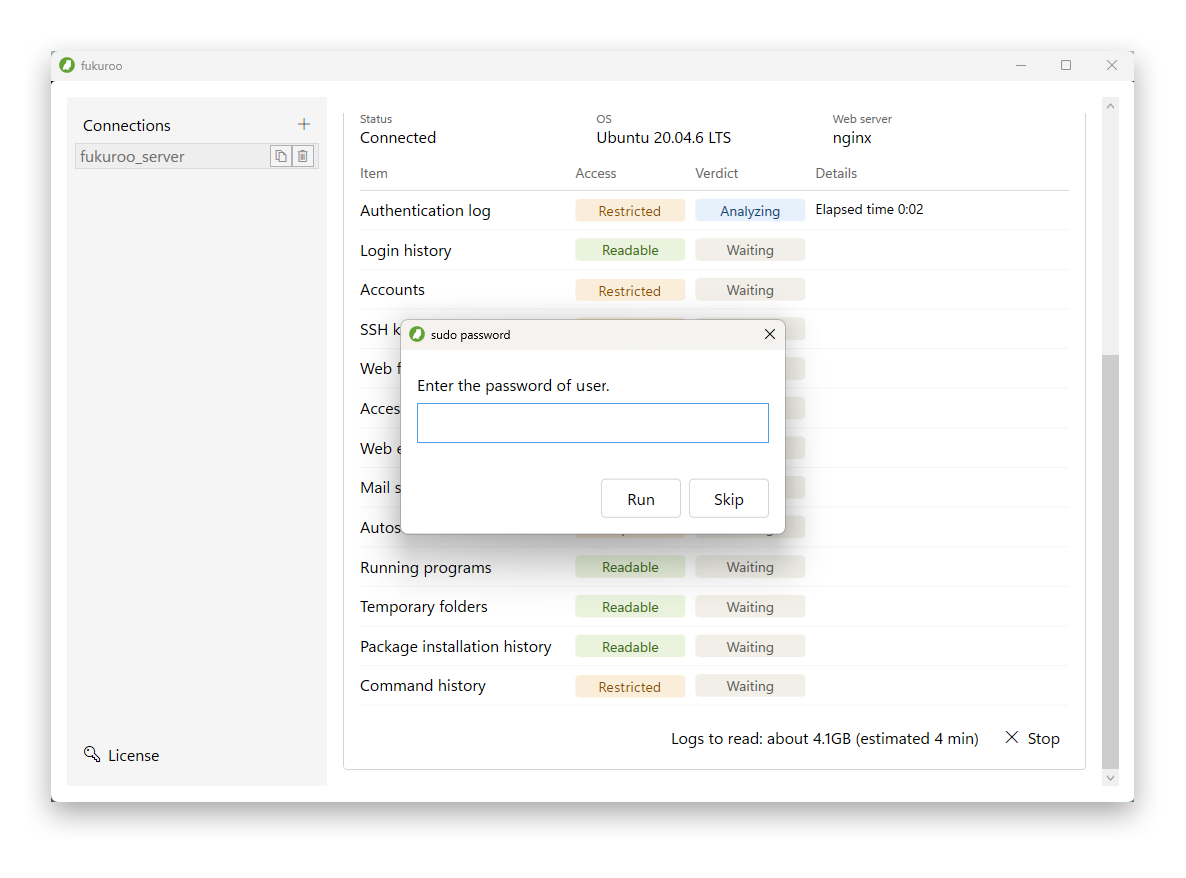
Enter the sudo password

When checking with sudo, an input screen appears when sudo asks for a password. Click Run to continue. Click Skip to check with the permissions of the connected user, without sudo.

06

Wait for the analysis to finish

The item being checked shows "Analyzing" and the elapsed time. Servers with many logs take longer. To stop partway, click Stop.

07

Review the results

The verdict and details are shown for each item. If anything is marked Review, check whether you recognize the evidence shown in the details (log lines or file locations, up to five lines). If you do not, talk to your server administrator or a security specialist. Items marked Unknown can be checked by using sudo or a shorter period, and items marked No access by analyzing as root or with sudo.

08

Activate your license

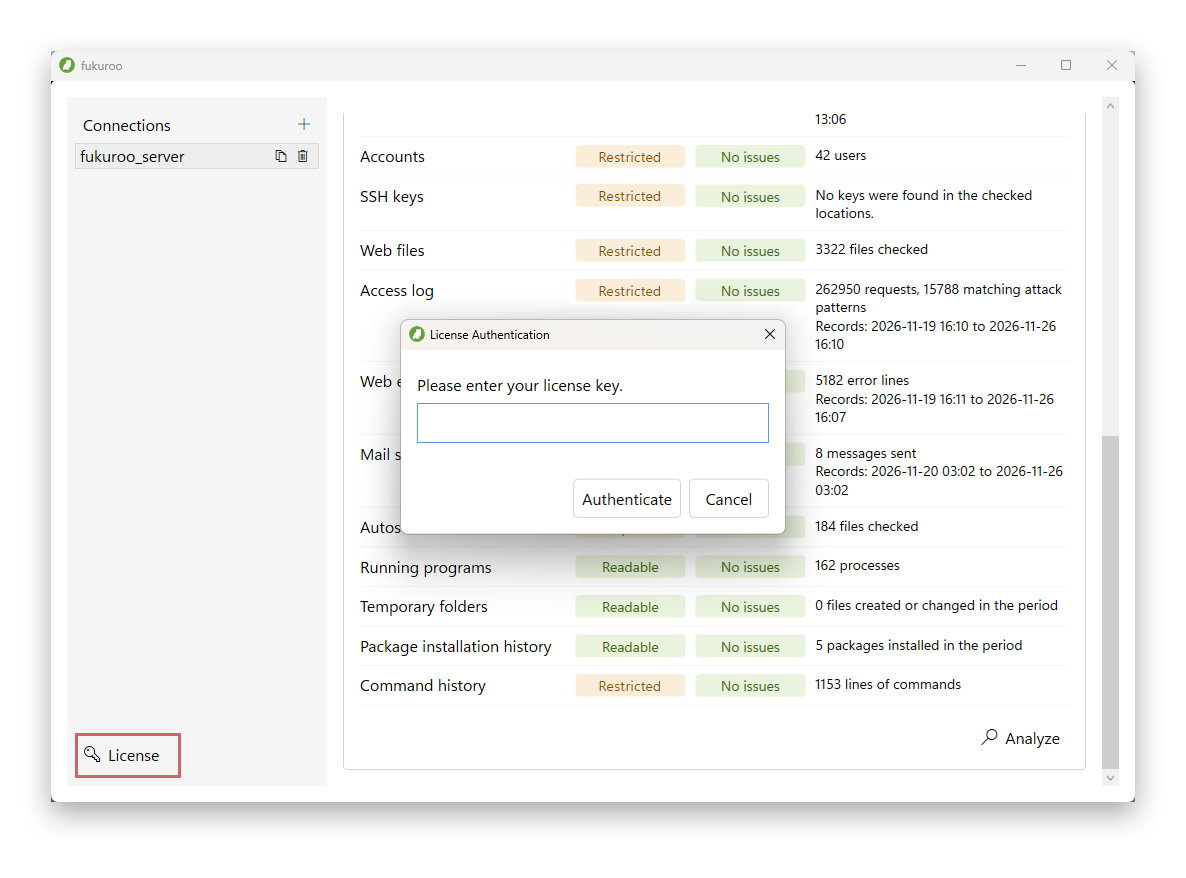
A license must be purchased to save reports. After purchase, click License at the bottom left of the screen, enter the license key you received by email, and click Authenticate.

09

Save a report

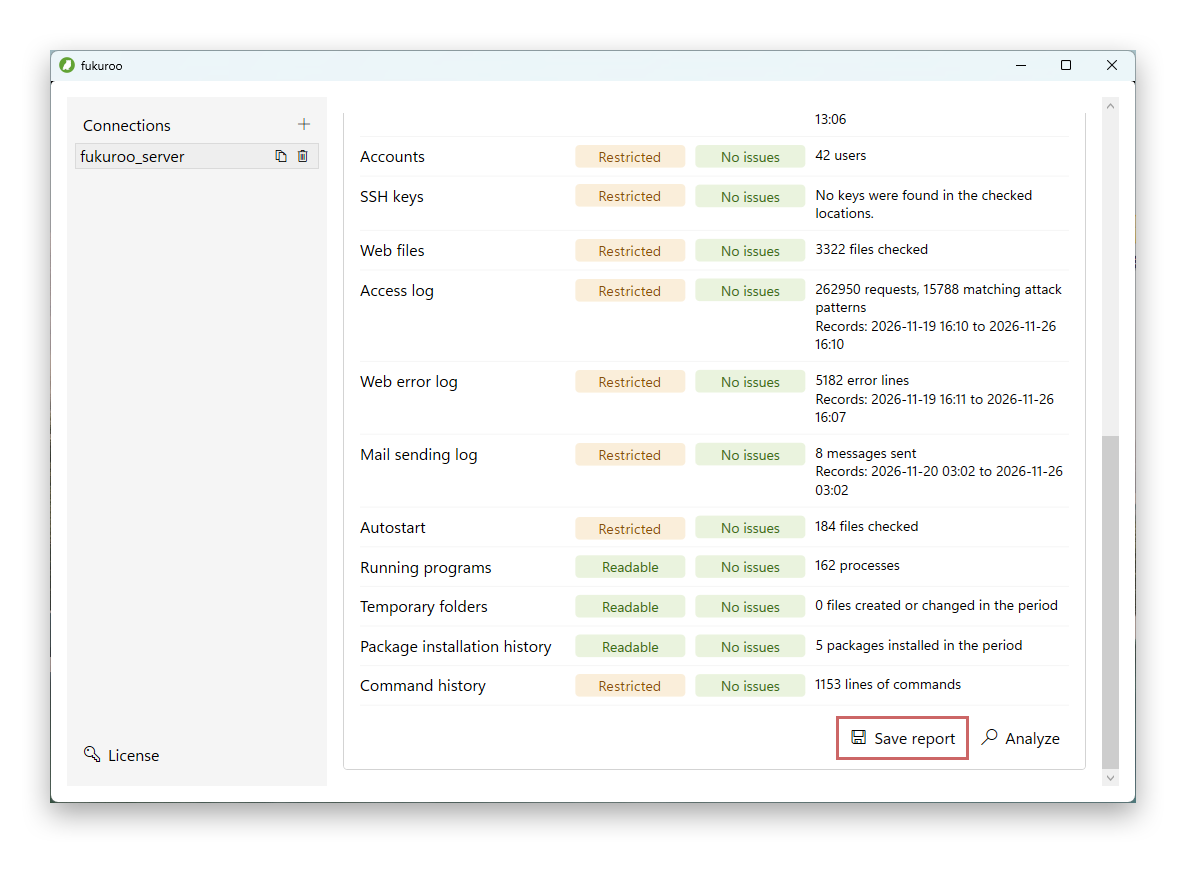
Once your license is activated, Save report appears after an analysis finishes. Click Save report and choose where to save it and the file name. A detailed text file is saved together with the PDF summary under the same name. It contains all the evidence that does not fit on the screen, the locations checked, and data such as the top source addresses and files changed during the period, so you can look into a possible intrusion in detail.

PURCHASE A LICENSE

Register your email address
to purchase a license.

Enter your email address and we will send you a verification email with a link to the license registration page.

01

Receive the verification email

Enter your email address below and click "Send verification email."

02

Open the registration page

Open the link in the verification email.

03

Set your name and password

Enter the license holder name and a password, then submit. Your license key and payment instructions will be sent by email.

04

Pay

Pay by credit card or bank transfer. Your license becomes active once payment is confirmed, and we will let you know by email.

05

Activate in fukuroo

Enter your license key in fukuroo to activate it. You can then save reports.

By clicking "Send verification email," you agree to our Terms of Use and Privacy Policy.

Keep your verification email. It contains the link you need to log in to the license management page.

CHANGE YOUR COMPUTER

When you change computers.

Each license can be used on one computer. To use fukuroo on another computer, reset the registered device and activate again.

01

Open the license management page

Open the link in the verification email you received when you registered.

02

Log in

Enter your password to log in.

03

Reset the registered device

Click "Reset" next to "Registered Device." The previous computer will no longer be able to save reports.

04

Activate on the new computer

Enter the same license key in fukuroo on the new computer.

GOOD TO KNOW

Before you get started.

Does "No issues" mean the server was not compromised? +

No. "No issues" means that no traces were found in what was checked; it does not prove that there was no intrusion. Some things cannot be found, such as tampering with files that does not use typical patterns.

Are the results sent anywhere? +

No. Server details and results stay on your computer. For license checks, only the license key and a value identifying the registered device are sent to us.

Does fukuroo leave records on the server? +

SSH connections and sudo use may be recorded in the server's authentication logs. fukuroo does not change anything on the server.

PURCHASE INFORMATION

Disclosures under Japan's Act on Specified Commercial Transactions

Business operator PANDA SHOKAI, LIMITED LIABILITY COMPANY
Corporate Number: 4060003004220
Representative Suguru Suzuki
Address 1-5-28-603 Honcho, Aoba-ku, Sendai, Miyagi, Japan
Telephone +81-90-2201-8177
We do not accept inquiries by telephone. Please use "Contact" at the bottom of this page.
Website https://pandafirm.jp/en/
Contact Please use "Contact" at the bottom of this page.
Prices See the "License" section on this page.
Additional fees Bank transfer fees are the customer's responsibility.
Payment methods Bank transfer or credit card
For bank transfers, please pay within 30 days of the invoice issue date.
Delivery and activation License keys are sent by email immediately after registration and are enabled after payment is confirmed.
Returns and cancellations Due to the nature of software licenses, cancellations and refunds are not accepted after license activation.
Please check how fukuroo works with the free analysis before purchasing.